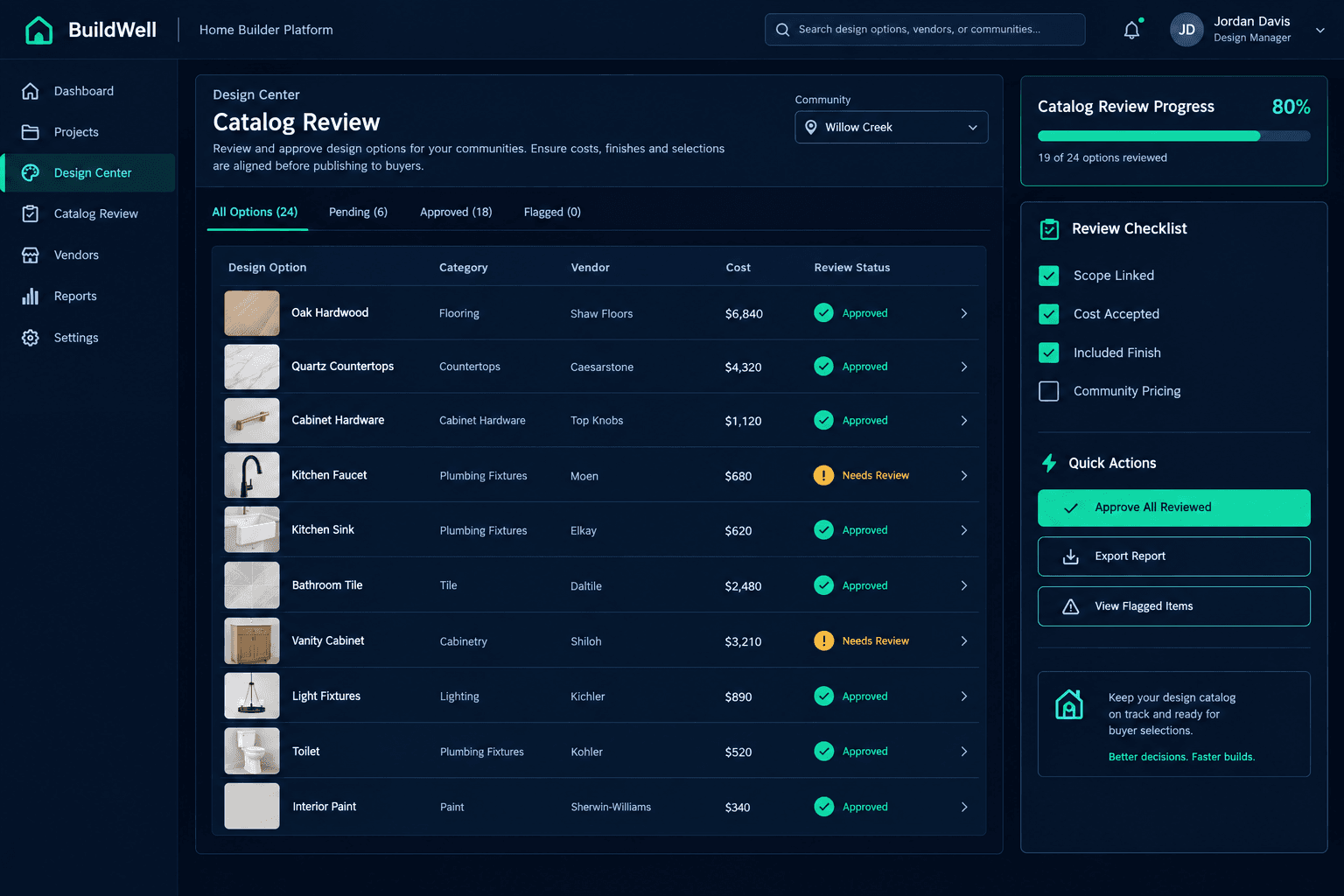
Before Buyers See the Catalog: A Design Center Launch Review
Before opening a new floorplan’s catalog to buyers, walk every option for contents, scope links, accepted vendor cost, and standard-vs-upgrade treatment, then confirm retail pricing is correct for each community. This is a human review step, not an automated gate — nothing stops a builder from publishing a catalog with gaps, so the review has to happen on purpose.
It’s easy to treat catalog setup as done once every option on a floorplan has a price attached. But “has a price” and “has the right price, linked to the right scope, treated the right way” are different claims. A single missed link or mislabeled spec level can mean a buyer sees a free upgrade, a superintendent gets a purchase order with no labor cost attached, or a community quietly undercuts its own retail pricing. The Design Center gives builders the per-floorplan option management and individual-option spec-level control to catch all of this before launch — but the review itself is a checklist a human runs through, not something the platform enforces automatically.
Who should run this review, and when?
This is a purchasing or design-team review, done once a floorplan’s options have been set up and before the catalog opens to buyers in a given community — whether that’s a brand-new plan, a plan being added to a new community, or an existing catalog after a round of vendor repricing. It’s a different task from running a live buyer appointment or bulk-creating options from a template: this is the last check before the catalog is buyer-facing.
How do you confirm every option actually has contents?
Start under Purchasing → Options for the floorplan and open each option in the category list. Confirm it has a real name, the correct category, and a description a buyer would actually understand — not a placeholder label carried over from a bulk import or copied from a different plan. A catalog that reads cleanly in a spreadsheet can still show buyers an option called “Option 14” with no description if this step gets skipped.
Why does every option need a verified scope link?
Every option in the catalog should be linked to the scope item that carries its labor and material cost. An option with a missing or incorrect scope link can still display a price to the buyer, but it won’t flow the right cost into the purchasing and budget workflow when that option is selected. The option looks finished on screen; the budget behind it is wrong. Checking scope links one category at a time — flooring, countertops, cabinet hardware, fixtures — is the fastest way to catch this before it reaches a live home.
How do you tell an unpriced option from a deliberate included finish?
This is the step builders skip most often, and it’s the one that causes real margin loss. A blank cost field and a deliberately priced-at-$0 included finish can look identical on a buyer-facing screen — both just show as part of the base price. Neither a blank field nor a zero dollar amount proves an upgrade is actually free; only tracing the cost back to an accepted vendor bid confirms it. Review every option’s underlying cost against the accepted bid it should be pulling from, and flag anything where that trail is missing rather than assuming a $0 display means the setup is correct.
How do you confirm standard-vs-upgrade treatment is correct?
Walk each option’s spec level and confirm it matches what the plan actually intends. Options meant to be included in the base price should sit at Standard; options meant to be paid add-ons should carry Upgrade I, II, or Premium. Cornerstone’s individual-option spec-level control means this can be set option by option, not just by whole category — which also means a single option left at the wrong spec level won’t show up as a category-wide problem. It has to be checked line by line.
Why does community-based retail pricing need its own pass?
Upgrade pricing isn’t global — the same option can carry a different retail price in different communities. Before launch, review each community’s pricing for the floorplan separately rather than assuming one number from setup applies everywhere. A plan reused across three communities needs its upgrade pricing reviewed three times, once per community, because a price that’s correct in one market can be stale or wrong in another.
Confirm option contents
Open every option under Purchasing → Options and verify it has a real name, correct category, and a buyer-facing description — not a placeholder.
Verify scope links
Check that each option is tied to the correct scope item so its cost flows into purchasing and the budget when selected.
Trace costs to accepted bids
Confirm every cost — included or priced — traces back to an accepted vendor bid. A blank field and a deliberate $0 look the same on screen; only the trail proves which one it is.
Review spec levels
Walk each option's Standard vs Upgrade I/II/Premium setting and confirm it matches the plan's actual included-vs-upgrade intent, option by option.
Check community pricing
Review upgrade retail pricing per community separately — the same option can be priced differently across every community the plan sells in.
Walk the catalog as a buyer
Open the live design center for that floorplan and community and step through it the way a buyer will, confirming exclusion groups complete correctly and nothing shows an unexpected price.
Is there an automated gate that blocks publishing an incomplete catalog?
No. This is a human review checklist, not a built-in publishing gate, automated catalog audit, or staging environment. Nothing in the platform stops a floorplan’s catalog from going live with a missing scope link or a stale community price — the option-level control that makes Cornerstone’s Design Center flexible is the same control that puts the review responsibility on the team setting it up. Treat this checklist as the step that happens every time, not a one-time setup task.
What does this review protect against?
A clean review before launch protects three things at once: buyer trust (no surprise pricing mid-selection), builder margin (no options quietly included for free), and budget accuracy (every selected option carries real cost into purchasing and the Master Cost Budget). Skipping it doesn’t show up immediately — it shows up weeks later, as a vendor invoice that doesn’t match the purchase order, or a sales agent fielding a question about why an upgrade they quoted now looks included.
Running this checklist takes longer the first time a floorplan is set up in a new community and gets faster on repeats, since most of what’s being verified — scope links, spec levels — carries forward from the plan’s prior setup. The review is still worth the few minutes every time a catalog opens to buyers, because the cost of catching an error after launch is always higher than the cost of catching it before.
Review every option before it reaches a buyer
Cornerstone PM’s Design Center gives builders per-floorplan option management and individual-option spec-level control, so a catalog review catches gaps before buyers ever see them.
Request Early Access →