Option Classes: Linking Design Selections to Scopes and Budgets Automatically
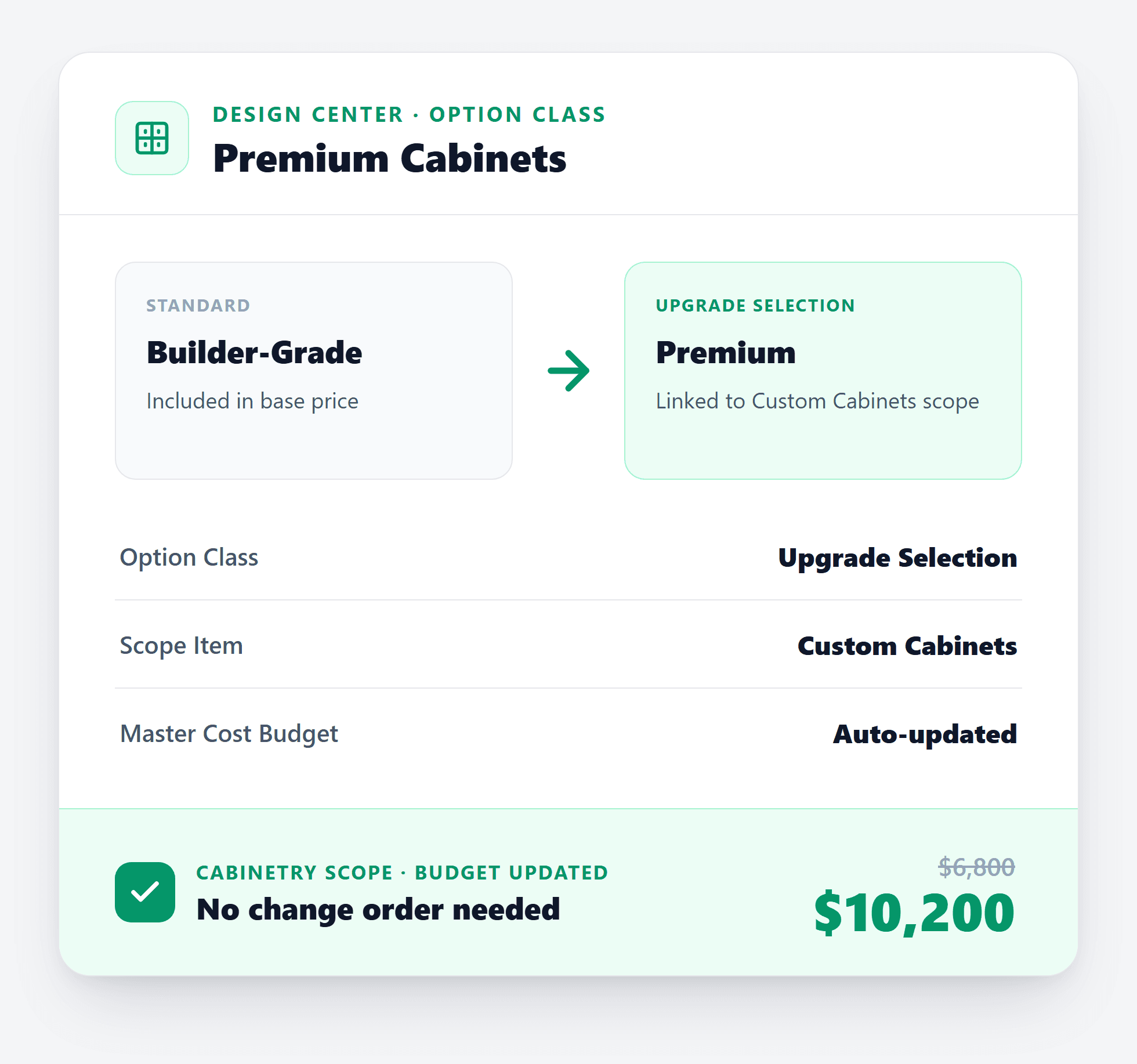
Cornerstone PM’s Option Classes tie a design selection category directly to a scope item and your Master Cost Budget — so when a buyer upgrades to Premium Cabinets, the Cabinetry scope and the overall budget update automatically. No manual reconciliation, no silo between the design center and the purchasing side of your project.
Why Do Design Selections and Budgets Live in Different Silos?
In most construction software, design selections and cost tracking are completely disconnected systems. A buyer chooses Premium Cabinets in the design center. That choice sits in a selections spreadsheet or a portal. Separately, a project manager manually enters a line item into the budget for the cabinetry upgrade — if they remember to, and if they get the number right.
The result is predictable: the design center says one thing, the budget says another, and the scope says a third. You’re reconciling three systems instead of running one.
This disconnect isn’t a minor inconvenience on a 5-home community. On a 40-home subdivision with 25 buyer selections per plan, you’re managing 1,000+ data points that were manually entered into two or three places. The error rate is high, the catch rate is low, and the margin leak is real.
What Are Option Classes in Cornerstone PM?
An Option Class is a category-level container for design options. Instead of floating options with no structural home, each option belongs to an Option Class — and each Option Class is linked to:
- A design category (Cabinetry, Flooring, Appliances, etc.) so options group correctly in the buyer-facing selection portal
- A scope item — the actual work item in the project scope that this design category drives, ensuring vendor bid templates know exactly which trade to include
- Budget tracking — when a buyer selects a paid upgrade option within the class, the cost delta flows into the Master Cost Budget automatically
The result: a single buyer action in the design portal updates the correct scope, triggers the right vendor bid line item, and adjusts the project budget — without a project manager touching anything.
How Scope-Item Integration Actually Works
The key technical connection is the Option Class → Scope Item link. When you configure an Option Class, you attach it to an existing scope item from your Scope Library. From that point on, any design option within that class knows which scope it belongs to.
Option Class: Cabinetry
Linked to Scope Item: Kitchen Cabinetry Labor + Material. Options: Standard White Shaker (included), Premium Soft-Close (+$3,200), Custom Inset (+$7,800).
Option Class: Flooring — Main Level
Linked to Scope Item: Flooring Installation — Main Floor. Options: Standard LVP (included), Upgraded Hardwood (+$4,100), Premium Herringbone (+$8,600).
Option Class: Appliance Package
Linked to Scope Item: Appliances Supply. Options: Builder Standard (included), Stainless Upgrade (+$2,400), Pro Series (+$5,500).
When a buyer upgrades from Standard White Shaker to Premium Soft-Close, the +$3,200 delta hits the Cabinetry line in the Master Cost Budget. The cabinetry scope item is already linked, so your vendor bid template for the cabinet trade automatically reflects the correct spec. The project manager doesn’t touch the budget. The purchasing coordinator doesn’t need to manually re-enter the upgrade on the bid request.
Bulk-Creating Options From Scope Items or the Parts Catalog
Setting up Option Classes from scratch across a 25-category design center would be tedious if you had to create every option by hand. Cornerstone PM solves this with two bulk-create paths:
Bulk create from scope items
Pull directly from your existing Scope Library. If you already have “Kitchen Cabinetry Labor + Material” as a scope item, Cornerstone can generate an Option Class from it automatically — the scope link is pre-populated, and you add your option tiers on top of the structure that already exists.
Bulk create from the parts catalog
If you maintain a parts or materials catalog in Cornerstone PM, you can generate options directly from catalog entries — pulling in pre-set pricing, descriptions, and category assignments. A standard cabinet line in your catalog becomes a Standard tier option with the price already attached.
For a builder launching a new community with 20+ option categories, this compresses initial design center setup from days to hours.
Global Retail Pricing Mode
For builders who price upgrade options at retail (buyer-facing price, not cost), Option Classes support a Global Retail Pricing Mode. When enabled, option prices displayed to the buyer are the retail price, while the builder’s internal cost records the cost basis separately.
This matters for builders who want to present upgrade costs to buyers without exposing their vendor pricing or margin. The buyer sees “Premium Soft-Close Cabinets: +$3,200.” The project file tracks the underlying vendor cost and the margin on that upgrade — all through the same scope-linked Option Class.
What This Means for the Master Cost Budget
The Master Cost Budget in Cornerstone PM is a live document — it reflects your actual scope, actual vendor bids, and actual buyer upgrade selections. Option Classes are the mechanism that makes the third input automatic.
Without scope-linked options, the Master Cost Budget is always behind. A buyer finalizes selections on Friday. A PM updates the budget Monday after manually reviewing the selection report. The budget is stale all weekend, and that’s if the PM catches every line.
With Option Classes tied to scope items, the Master Cost Budget updates at the moment of buyer selection. There’s no manual reconciliation step because there’s no silo to bridge. The design center IS the purchasing workflow.
The Design + Purchasing Connection
Option Classes are one part of Cornerstone PM’s design-to-purchasing pipeline. Here’s how the full connection works:
- Option Class created → linked to scope item and category
- Buyer selects upgrade option → delta posts to Master Cost Budget automatically
- Vendor bid request generated → includes only the scope items relevant to the selected options
- Bid received → replaces allowance or placeholder cost in the same budget line
- Purchase order issued → tied to the finalized scope item and option selection
How Does This Compare to Buildertrend and JobTread?
Buildertrend has a selections module and a budget module. They do not share a live data connection. A buyer selection in Buildertrend triggers a change order process — which a PM has to approve and enter into the budget manually. That’s by design in a custom-builder workflow, where every selection is negotiated. But in a production-builder context where selections come from a fixed menu, requiring manual change orders for every upgrade defeats the purpose of having a design center at all.
JobTread doesn’t have a buyer-facing design center in the same sense. It has a client portal and line-item approvals, but no concept of Option Classes, scope-item linking, or a structured upgrade pricing model built for production volumes.
NEWSTAR has budget-to-selections integration, but the UX dates from an era when configuration meant calling a support rep. Cornerstone PM’s Option Class setup takes a few minutes in a modern web UI — no implementation consultant required.
Option Classes are part of a broader Design Center that includes Designer Packages, Exclusion Groups for pick-one selections, Structural vs. Designer scope separation in bid templates, and per-floorplan options that replicate across every home of that plan in every community. On the purchasing side, the scope-item links connect directly to vendor bid requests and purchase orders — so the design selection is also the purchasing instruction, not a separate step.
If you’re evaluating platforms, see the full feature comparison on our home builder project management software overview — including why tools built for custom builders lack the scope-linked option model production builders need.
Ready to Connect Your Design Center to Your Budget?
Option Classes, scope-item linking, and a live Master Cost Budget — built for production builders who can’t afford a silo between selections and purchasing.
Request Early Access