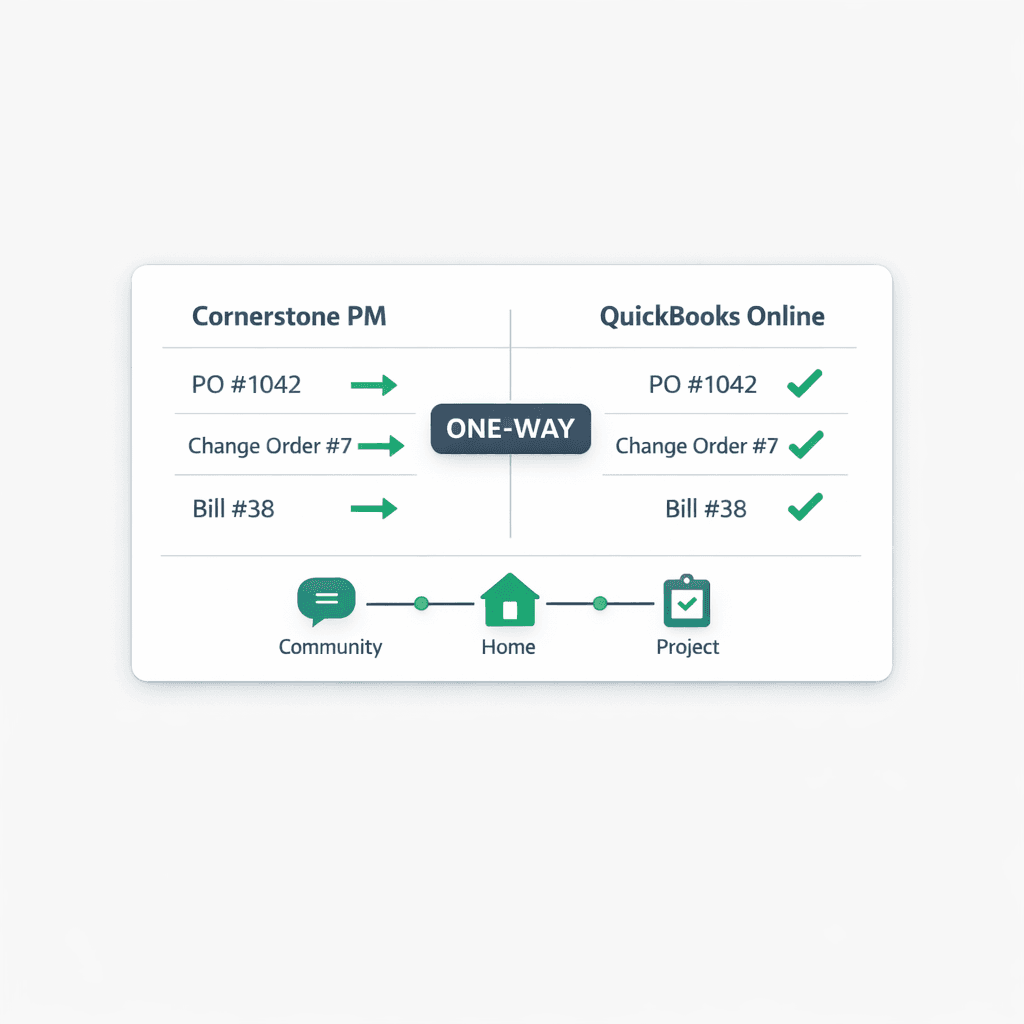
How Cornerstone Syncs to QuickBooks Online — Automatically, One Direction
Cornerstone PM syncs approved POs, change orders, bills, and vendors to QuickBooks Online automatically — one direction only, with no manual entry, no CSV exports, and no double data entry for your bookkeeper.
Most home builders run operations in one system and accounting in another. Every approved PO, every vendor credit, every change order gets re-entered by hand — or exported to a spreadsheet, cleaned up, and imported. On a busy week that's two to four hours of bookkeeper time that produces nothing new. It just moves data that already existed somewhere else.
Cornerstone's QuickBooks Online integration ends that loop. The purchasing workflow runs in Cornerstone — POs go to vendors, bids come back, approvals happen — and when something is approved or sent, it posts to QuickBooks automatically. The books stay current without anyone touching them between job completion and month-end close.
What syncs from Cornerstone to QuickBooks Online?
Four categories of records post automatically when they reach an approved or sent state in Cornerstone. Drafts stay private in Cornerstone — only records that have been acted on make it to QuickBooks.
The two-stage accounting flow matters for accrual-basis builders. When a PO is sent, it posts to QuickBooks as a Purchase Order — a commitment that shows up in your books as outstanding. When the work is received and the PO is marked complete, the matching Bill auto-creates and closes the PO in one step. No dangling POs, no duplicates, no manual reconciliation between commitments and actuals.
One important note: Cornerstone never auto-pays. The Bill lands in QuickBooks, due date set by your AP schedule, and payment always requires manual approval in QuickBooks. The human pay gate stays in place regardless of how the bill was created.
How does job costing map between Cornerstone and QuickBooks?
The most valuable part of any accounting integration for a builder isn't the transaction sync — it's per-home and per-community P&L without manual setup. Cornerstone maps its data hierarchy directly to QuickBooks' project model:
Every Community becomes a QuickBooks Customer (parent). Every Home becomes a Project under that Customer — or a sub-customer Job on QBO tiers that don't support Projects. Change orders and revisions roll up to the correct job automatically, so your per-home P&L in QuickBooks reflects the full picture: original POs, change orders, and final bills all attributed to the right address.
For builders running multiple communities, this gives you community-level profitability reporting inside QuickBooks without any additional configuration. The data model in Cornerstone and the data model in QuickBooks stay aligned from the first sync forward.
What do transaction memos look like in QuickBooks?
Every synced record carries a structured memo so transactions are traceable inside QuickBooks without having to cross-reference Cornerstone:
Example QBO Bill memo
Community: Maple Ridge | Lot 14 | 847 Birchwood Ct
PO #1042 | Cost Code: Framing
Vendor: Precision Framing LLC
Community name, lot number, street address, PO number, and cost code — all in one line. Your bookkeeper can pull any transaction from the QBO register and immediately understand which home it belongs to and which trade it covers, without opening Cornerstone.
How does the Chart of Accounts setup work?
When you first connect QuickBooks Online to Cornerstone, a one-click Chart of Accounts setup builds a construction-ready CoA and creates cost-code items ready for job costing. It reuses existing accounts by name — if "Framing Labor" already exists in your QBO books, Cornerstone maps to it. If it doesn't exist, it creates a new account.
No accounts are restructured or renamed. No existing transaction history is touched. Builders who have already been using QuickBooks can connect Cornerstone without worrying about their chart getting reorganized.
Why is one-way sync better than two-way for builders?
Two-way sync sounds more powerful in theory. In practice, it creates a class of bugs that are hard to detect and painful to undo: a bookkeeper edits a vendor name in QuickBooks to match their internal naming convention, and the sync writes that change back to Cornerstone — silently breaking the vendor record that 15 POs are attached to.
Cornerstone's one-way design keeps it as the source of truth for all job data. Anything you need to change — vendor details, PO scope, cost codes — you change in Cornerstone, and the next sync carries the update to QuickBooks. QuickBooks is for accounting, reporting, and payment. Cornerstone is for the build. The two systems never fight over who owns a record.
Where can I see what has synced?
Accounting → Sync Events in Cornerstone shows every push to QuickBooks, the timestamp, and the result — success, pending, or failed with retry history. If a sync fails due to a network issue or a QuickBooks rate limit, the retry status is visible there. You always know what landed in QuickBooks and what is still pending, without logging into QBO and manually cross-checking transactions.
One-way sync vs. manual entry: a quick comparison
How does QBO sync fit the rest of the purchasing workflow?
The QuickBooks sync isn't a standalone feature — it's the accounting layer at the end of a complete purchasing workflow that starts the moment a task is assigned:
- Task assigned in the build schedule. Cornerstone auto-generates a PO and emails it to the assigned vendor.
- PO sent → posts to QuickBooks as a Purchase Order. The commitment appears in your books immediately.
- Work completed → PO marked received. The matching Bill auto-creates in QuickBooks, linked to the PO, which closes.
- AP schedule sets the due date. Net-X, Weekly, Monthly, Bi-weekly, or Semi-monthly — the due date computes automatically and carries into the QuickBooks Bill.
- Builder batch-pays on payday. All bills due by a given date appear together in QuickBooks for one manual payment approval — no hunting across individual bills.
The vendor's only job is to send an invoice. Everything else — the PO, the commitment in QuickBooks, the Bill on completion, the due date — happens without anyone re-entering a number.
For builders ready to set up the integration or learn more about what the full purchasing workflow covers, the Cornerstone PM purchasing page has the complete picture — from bid requests and vendor portals through to QuickBooks sync and AP automation.
Stop re-keying POs into QuickBooks by hand.
Cornerstone PM syncs approved POs, change orders, bills, and vendors to QuickBooks Online automatically — one direction, clean memos, real job costing. Your books stay current without a bookkeeper touching them between closes.
Request Early Access