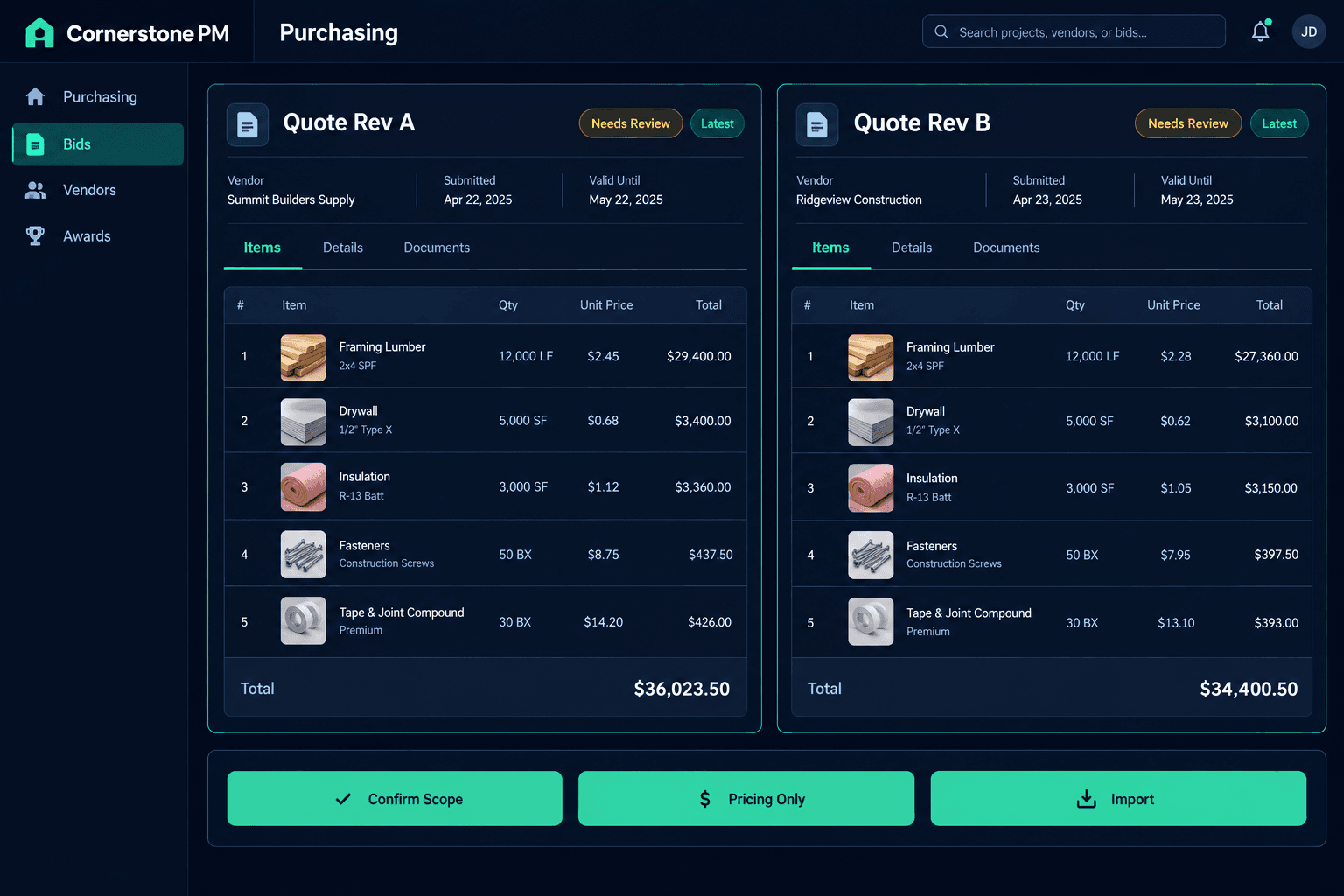
Two Quote Files, Two Totals: Resolve Bid Revisions Before Importing
When a vendor sends two quote files with different totals, ask the vendor which document controls before anything is imported. A short purchasing review at that point is far cheaper than awarding on an outdated price.
It happens constantly: a vendor emails a quote, then a revised one, and both end up attached to the same bid. The dates are close, the file names are nearly identical, and the totals disagree. Picking the newer-looking file feels safe, but it is a guess, and a guess here becomes a number in your budget.
Why do conflicting quote attachments happen?
Vendors revise quotes after a site question, a quantity change, or a material price move, and they rarely retire the old file. Because Cornerstone accepts vendor documents through its no-login bid portal, a vendor can upload a second file without anyone on your team noticing. Nothing in the process tells you which one the vendor meant to be final, so that call stays with a person.
Don't assume the latest date wins
A later upload date doesn't prove it's the intended quote. Cornerstone doesn't automatically rank revisions or resolve a conflict for you, so confirm with the vendor.
What is the vendor bid revision checklist?
Work through these steps before you import or award:
- List every attachment. Note each file's revision date, total, and the scope it covers.
- Ask which document controls. Get the vendor's answer in writing and keep it with the bid.
- Check scope and floorplan coverage. Confirm the quote covers the trade, floorplan, and quantities you actually requested.
- Pick the right import mode. Match the mode to what the controlling document should change.
- Review matches and prices. Verify scope matching and totals before award.
- Record the decision. Note which file controlled and why.
Which import mode should you use?
Cornerstone's bid import supports takeoff-only, pricing-only, or combined imports. If the vendor's revision only changed unit prices, a pricing-only import keeps your existing quantities intact. If the revision changed quantities because the floorplan changed, you need the takeoff side too. Choosing the wrong mode can carry stale quantities forward or overwrite numbers you meant to keep, so decide this after you know which document controls, not before.
What should you check after the import?
Imports are a starting point, not the final word. Walk the result the same way you would any bid: confirm each line landed under the right trade, as covered in reviewing AI scope matching, and compare the totals against the document the vendor confirmed. Costs in Cornerstone stay tied to accepted vendor pricing, so the number you accept should be the number the vendor stands behind.
Resolve the revision before the award, not after
Once an award is locked, it isn't something to quietly edit. Settling which quote controls up front keeps the award clean and the budget honest.
How do you keep this from recurring?
Ask vendors to label revisions clearly and to name the quote that replaces an earlier one when they upload. Add a line to your bid request template asking them to state which file is final. None of this removes the need for a person to confirm, but it shortens the conversation. For the full path from bid request to accepted pricing, see Cornerstone PM's purchasing module.
Import the quote the vendor actually meant.
Cornerstone PM keeps bid documents, import modes, and accepted vendor pricing in one place so your team reviews before it awards.
Request Early Access